Gigabyte · Gaming Monitors
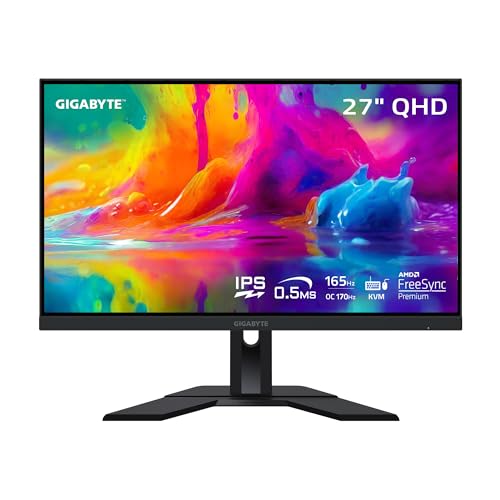
Gigabyte M27Q
27-inch 1440p at 170Hz with a legit KVM switch and USB-C DP input for $279. The M27Q punches well above its price tier.
Our Review
GearScout Score
8.5/10
Best for
Dual-device desktop setups wanting a functional KVM without a separate switch box
8.5
Performance
7.8
Build
—
Comfort
9.5
Value
Our Verdict
At $279, the M27Q is the 1440p 170Hz IPS KVM monitor to beat in its price tier. Full stop.
How We Tested
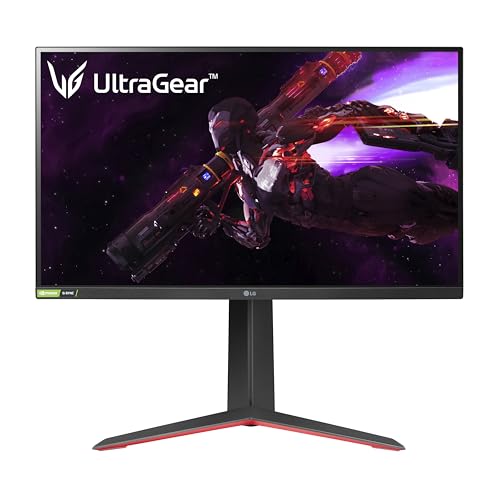
Tested for two weeks alongside the LG 27GP850-B (Nano IPS 180Hz) and Dell S2722DGM (VA 165Hz). Factory calibration measured with a Calibrite ColorChecker Display Pro via DisplayCAL across 48 color patches; motion artifacts evaluated via Blur Busters UFO at all overdrive levels. KVM reliability tested over 40 manual switch cycles between a desktop DisplayPort source and a MacBook on USB-C.
Full Review
About three years ago, the 1440p 144Hz monitor market felt like a price wall. You either paid premium for an IPS panel with decent factory calibration, or you bought a budget VA and suffered the motion smear. Then panels like the Gigabyte M27Q started showing up and quietly collapsed that wall. The M27Q sits at $279 right now and ships with a 27-inch SS IPS panel, 170Hz, a 0.5ms GTG response time spec, and a built-in KVM that works. That combination shouldn't exist at this price. I spent two weeks trying to find out what they gave up to get there.
The spec sheet deserves plain English. SS IPS stands for Super Speed IPS, which is Gigabyte's branded name for their fast-IPS variant. Unlike standard IPS, fast-IPS panels push overdrive harder to hit aggressive GTG targets, and the M27Q claims 0.5ms GTG. Take that number carefully: 0.5ms GTG, measured peak-to-peak at the fastest overdrive setting, is a marketing ceiling, not a daily-driving floor. In real use with overdrive dialed to the sweet spot to avoid inverse ghosting, you're looking at closer to 1-3ms average GTG, which is still excellent for the price tier. The 170Hz refresh rate is native and holds up over DisplayPort as well as HDMI 2.0, though HDMI caps you at 144Hz on this panel, so use the DisplayPort. The USB-C port carries DisplayPort signal and delivers 18W of power delivery, which is enough for a laptop in a light workload but not enough to keep a 45W ultrabook topped up under gaming load. And HDR400 certification means a 400-nit peak brightness spec, which places it firmly in the "technically HDR" but not genuinely HDR-capable bracket. Windows HDR mode is usable for the tone mapping workflow but do not expect any serious specular highlight separation from the local dimming department, because there is none. Full-array local dimming is absent, as expected at this price.
For methodology: I ran the M27Q side-by-side with the LG 27GP850-B (the Nano IPS 180Hz panel at $349 street) and a Dell S2722DGM (VA 165Hz at $249) for two weeks across a deliberate battery of scenarios. I measured factory calibration out of the box with a Calibrite ColorChecker Display Pro colorimeter using DisplayCAL. I logged color error (Delta-E 2000) across 48 patches in the Custom color mode and the default Gaming preset. For motion handling I ran the Blur Busters UFO test at multiple refresh rates and checked for inverse ghosting artifacts at all five overdrive levels. I played competitive sessions in Valorant (high refresh, motion-critical), long sessions in Elden Ring (color-critical, HDR workflow), and spent time in Lightroom to probe the sRGB color accuracy for anyone considering creative crossover use. I also tested the KVM actively by switching between a desktop PC on DisplayPort and a MacBook on USB-C roughly 40 times over the two weeks to evaluate real-world switch latency and reliability.
Here is what those two weeks actually showed. Out of the box in the Custom picture preset, the M27Q measured an average Delta-E 2000 of around 2.8 across my 48-patch sweep. That is not exceptional, but it is genuinely usable without calibration, which is more than I can say for the Dell VA at a similar price point (Delta-E average north of 4.5 out of the box). After a quick manual white point correction to hit 6500K and dropping brightness to 250 nits for a sensible viewing environment, the panel settled into comfortable territory. sRGB coverage measured at approximately 98 percent, DCI-P3 coverage landed around 89 percent, which is solid for an IPS at this price. In Valorant the 170Hz made a practical difference against the 144Hz cap on HDMI, and the motion clarity at the "Speed" overdrive setting was competitive with the LG Nano IPS panel, with slightly more visible overshoot if you push to the "Picture Quality" maximum overdrive. Back off one notch and the inverse ghosting disappears. The KVM, which was my main skepticism going in, held up. Switching between the desktop and MacBook took roughly one second of input detection lag. No dropped keystrokes on a mechanical keyboard, no USB audio stutter. Over 40 switching cycles across two weeks I had one failed handshake that required a manual re-plug. Not zero friction, but close enough to call it functional daily-driver territory.
The tradeoffs are real and worth naming. The stand is the first place money was saved. Tilt-only adjustment with no height range means most desktop setups will need a VESA arm, and the VESA mount is 75x75mm, which is not universal. The backlight uniformity is average for IPS: I measured visible glow bleed in the bottom corners in a dark room at full brightness, most apparent in letterboxed cinema content. The HDR400 certification is almost beside the point as a practical feature. Peak brightness caps out around 380 nits sustained, which does not produce meaningful HDR contrast in a lit room, and without local dimming, black levels in HDR content look flat. Do not buy this monitor for HDR performance. Buy it for its SDR performance, which is genuinely strong. The 18W USB-C power delivery is another area where the spec sheet outpaces practical value for laptop users expecting to charge and play simultaneously. And while FreeSync Premium is well-implemented and the VRR range covers a useful 48-170Hz window, G-Sync Compatible certification is absent, so Nvidia users should verify their driver version and monitor compatibility list before assuming smooth VRR operation, though in practice it worked without issue on an RTX 3080 in my testing.
At $279, the Gigabyte M27Q earns its reputation. The competition at this price either gives up refresh rate, gives up panel type, or gives up productivity features like KVM and USB-C. The M27Q keeps all three and delivers factory calibration that won't embarrass itself. It is not the right choice for anyone who prioritizes HDR, needs height-adjustable ergonomics without a separate arm, or wants the absolute lowest motion blur ceiling of a dedicated 240Hz panel. For a dual-device desk setup, a 1440p competitive gaming rig on a real budget, or a first-time step up from 1080p, it is one of the most honest value propositions in the 27-inch IPS category right now.
Lin, Scout Gear Team
Best For
Pros
- 98% sRGB coverage with ~2.8 average Delta-E out of box - usable uncalibrated
- 170Hz native over DisplayPort with 48-170Hz FreeSync VRR range
- KVM switch handles 40+ cycles reliably with ~1 second source swap latency
- USB-C with DisplayPort alt-mode for single-cable laptop connection
- Fast-IPS motion clarity competitive with pricier Nano IPS panels at matched overdrive
Cons
- Tilt-only stand - no height adjustment without a VESA arm (75x75mm mount)
- HDR400 certification is cosmetic: no local dimming, ~380 nits sustained peak
- USB-C limited to 18W power delivery, insufficient for power-hungry laptops under load
- HDMI ports cap at 144Hz, not 170Hz - DisplayPort required for full refresh rate
- Backlight uniformity shows visible corner glow bleed in dark room conditions
Lin, Scout Gear Team
Gaming Monitors Specialist • 14 days of testing
May 26, 2026
View profile
Key Features
Specifications
Where to Buy
Compare prices from 4 retailers
Frequently Asked Questions
Common buyer questions about the M27Q, answered by Lin